CCleaner not opening or crashing
Determine whether the issue is an application crash, permission problem, damaged installation, or conflict with another utility.
This guide explains a cautious way to diagnose the issue, avoid unnecessary changes, and confirm whether the result is resolved. CCleaner product editions and account options may differ, so always check the labels shown in your installed version before proceeding.
Understand the problem before changing settings
Write down what you expected to happen, what actually happened, and the last successful attempt. Note the Windows version, CCleaner edition, and any message shown on screen. This distinction matters because an account sign-in failure, a local application error, and a purchase entitlement problem may require completely different solutions.
When a step mentions an account, purchase, or license, use only the verified service associated with your own transaction. This website does not provide a CCleaner sign-in form or ask for confidential credentials.
Step-by-step troubleshooting
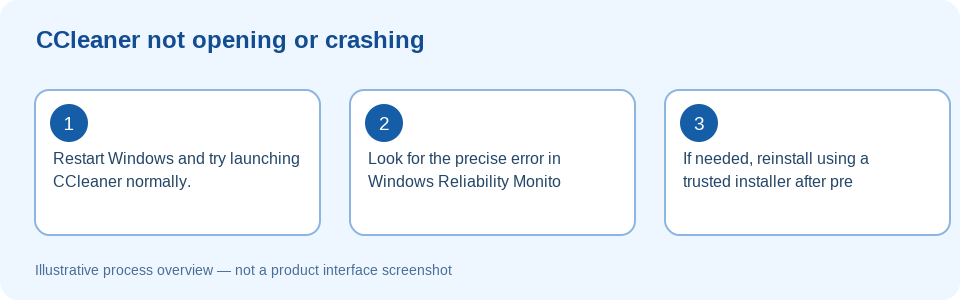
- Step 1. Restart Windows and try launching CCleaner normally. Take note of the result before moving to the next step; a changed symptom can identify the underlying cause.
- Step 2. Check Task Manager for a stuck CCleaner process before retrying. If this step does not apply to your edition, skip it rather than selecting a similarly named but unrelated control.
- Step 3. Look for the precise error in Windows Reliability Monitor or Event Viewer. When changing a setting, record its previous value so you can reverse the change if needed.
- Step 4. Install applicable Windows updates and verify CCleaner compatibility. Take note of the result before moving to the next step; a changed symptom can identify the underlying cause.
- Step 5. Test with security software active; review any blocked-app alerts. If this step does not apply to your edition, skip it rather than selecting a similarly named but unrelated control.
- Step 6. If needed, reinstall using a trusted installer after preserving license and settings. When changing a setting, record its previous value so you can reverse the change if needed.
How to confirm the result
Repeat the original task once after completing the relevant steps. Confirm that the same error no longer appears and that the expected feature or account state is working. If the issue involves a charge, subscription, or license, verify the result against the appropriate receipt or account record rather than relying only on an on-screen message.
Common mistakes to avoid
- Deleting registry entries at random.
- Assuming every crash is caused by malware.
Use reversible changes first. If you are unsure whether a step could remove personal data or alter Windows behavior, back up important information and seek product-specific guidance before proceeding.
Frequently asked questions
What should I check first?
Start with the exact symptom described in this guide: Determine whether the issue is an application crash, permission problem, damaged installation, or conflict with another utility.
Should I disable security software to fix it?
No. Keep Windows and endpoint protections enabled. Investigate specific block messages and follow your organization’s policy.
What information is safe to share when requesting help?
The product edition, Windows version, exact error text, and a redacted order reference can help. Never share passwords, full license keys, one-time codes, or complete payment details.
What if these steps do not solve the problem?
Stop repeating actions that could change data or billing. Keep a record of what you tried and use verified publisher assistance for product-specific account or entitlement issues.
Related guides
- CCleaner running slowly or freezing
- CCleaner high CPU or disk usage
- CCleaner account login not working
For account or payment issues, never send passwords, verification codes, or complete card details to a third-party help website.